
EndNote for Citation Management: How to Use It

Using EndNote for citation management means using the EndNote software to collect references, store PDFs, insert citations into Word and produce a bibliography in the style your course requires. It is widely used for theses, journal articles and systematic reviews.
This guide explains what EndNote does, compares it briefly with Zotero and Mendeley, gives six steps with an example at every step, and covers importing, duplicates, groups, Cite While You Write, backups and common mistakes.
- The tool: what EndNote does and who uses it.
- The method: six steps from a new library to a finished bibliography.
- The care: importing, duplicates, backups and common mistakes.
Key takeaways
- EndNote stores references and PDFs in a library, inserts citations in Word and formats a bibliography.
- It handles large libraries well, which suits theses and systematic reviews.
- Remove duplicates, organise with groups and back up the library as a compressed file.
- Do not keep an active library in a synced cloud folder, because it can become corrupted.
What is EndNote?
EndNote is a commercial reference manager from Clarivate.
- Desktop and online: a desktop application plus an online version for syncing and sharing.
- Library: a file that stores references, PDFs, notes and groups.
- Word plugin: Cite While You Write inserts citations and builds the bibliography as you type.
- Styles: thousands of journal and university styles are available.
- Current version: EndNote 2025 was announced by Clarivate in April 2025; check the EndNote website for current features and prices.
Main features of EndNote for citation management
These features explain why EndNote is popular for large projects.
- Import from databases: export records from PubMed, Scopus, Web of Science and others directly.
- PDF attachments: store a PDF with each record and annotate it.
- Find duplicates: detect repeated records with adjustable rules.
- Groups and smart groups: organise by chapter, theme or keyword, with automatic rules.
- Sharing: share libraries with collaborators through the online version.
- Find full text: search for PDFs for selected references.
EndNote vs Zotero vs Mendeley
Choose by cost, library size and how you write.
| Feature | EndNote | Zotero | Mendeley |
|---|---|---|---|
| Cost | Paid, often provided by universities | Free, with paid storage | Free, with paid storage |
| Large libraries | Very good | Good | Good |
| Systematic reviews | Strong deduplication and groups | Good with add-ons | Fewer review features |
| Word plugin | Cite While You Write | Word, LibreOffice, Docs | Mendeley Cite |
| Open source | No | Yes | No |
For a wider view, read about reference management tools.
Step-by-step guide to EndNote for citation management
Follow these six steps. Each has an explanation and an example.
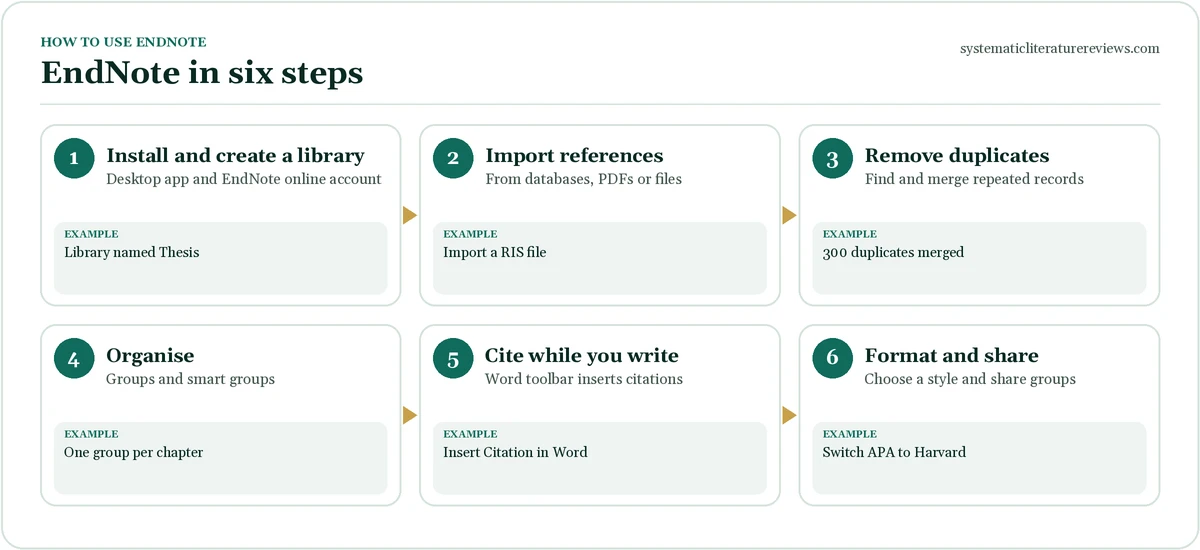
- Create a library. Open EndNote and choose File, New. Save the library in a normal folder on your computer, not inside a synced cloud folder. Example: Thesis-Library.enl saved in Documents.
- Import references. Export from a database as RIS or use the direct export button, then import with the matching filter. Check that fields such as author, year and journal are correct. Example: Import 120 records from PubMed using the PubMed (NLM) filter.
- Add PDFs and fix records. Attach PDFs and correct errors in titles, authors and pages while the source is open. Example: Fix capital letters in titles.
- Remove duplicates. Use Library, Find Duplicates, compare the pairs and remove true duplicates, keeping the more complete record. Example: 18 duplicates removed.
- Organise with groups. Create groups for chapters or themes and drag references into them. Example: Group: Chapter 2 literature.
- Cite and build the bibliography. In Word, use the EndNote tab to insert citations and choose the style. The bibliography updates automatically. Example: Insert citation, choose APA 7th, update the bibliography.
Importing references correctly
Good imports save hours of cleaning.
- Use the right filter: each database has a matching import filter.
- Prefer direct export: it carries more fields than copying text.
- Import to a temporary group: check the records before moving them into the main library.
- Check key fields: author, year, title, journal, volume, pages and DOI.
- Keep search records: record the database, the date and the number of records for your methods.
Finding and removing duplicates
Duplicates are common after searching several databases.
- Run it often: after each import, not once at the end.
- Compare pairs: EndNote shows possible duplicates side by side.
- Adjust the rules: by default it compares author, year, title and reference type; add pages or DOI for more accuracy.
- Review manually: conference papers and preprints may look like duplicates but differ.
- Record the number: report duplicates removed in your PRISMA flow diagram.
See how to report this in the PRISMA flow diagram.
Using Cite While You Write in Word
The plugin links your document to the library.
- Insert citation: place the cursor, search in the EndNote tab and insert the reference.
- Change style: choose another style from the tab, and the whole document updates.
- Edit citations: add page numbers or remove the author name in one citation.
- Update the bibliography: use Update Citations and Bibliography after changes.
- Convert to plain text: make a copy of the document, convert the copy to plain text, and use that for the final version.
Backing up your EndNote library
A backup is not optional for a long project.
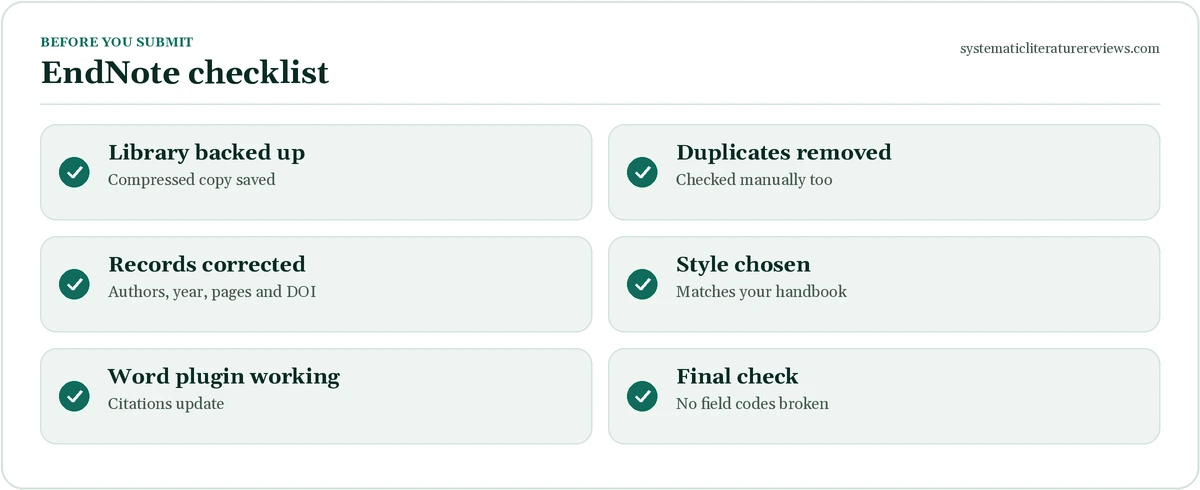
- Compressed library: choose File, Save a Copy or Compressed Library to create an .enlx file that includes the PDFs.
- Schedule it: make a backup weekly and before any large edit.
- Store copies: keep one on another drive and one in your cloud storage.
- Do not sync the live library: keep the working .enl file and its Data folder on a local drive; synced folders can corrupt the library.
- Test the backup: open it occasionally to confirm that it works.
Practical tips for using EndNote for citation management
These habits keep a large library clean.
- Add notes: use the Notes field for a one-line summary of each source.
- Use a naming rule: name PDFs consistently.
- Use custom fields: mark studies as included or excluded in a review.
- Learn the shortcuts: small gains add up.
- Check your style: your department may modify the standard style.
- Ask your library: many universities offer training and licences.
Common mistakes with EndNote for citation management
Avoid these problems.
- Library in a cloud folder: it can corrupt. Example: keep it local and back it up.
- Typing citations by hand: the link is lost. Example: insert them with the plugin.
- No duplicates check: references appear twice. Example: run it after every import.
- Trusting imports blindly: fields can be wrong. Example: check each record.
- Editing the bibliography text: changes disappear on update. Example: edit the record, not the output.
If you want help with a review, see our systematic literature review service.
Using EndNote for a systematic review
EndNote suits reviews because it handles thousands of records.
- One library per review: keep the review separate from your personal references.
- Import each database into its own group: this lets you count records per source for the flow diagram. Example: PubMed group 1,200 records.
- Deduplicate across groups: run Find Duplicates on the whole library and record the number removed.
- Use custom fields: create labels such as Include, Exclude or Maybe, and a field for the exclusion reason.
- Export for screening: export the cleaned records to Rayyan or Covidence in RIS format.
- Keep a final library: save the list of included studies as a separate group.
The counts feed the PRISMA flow diagram.
Choosing and editing output styles
The output style controls how citations and the bibliography look.
- Select a style: APA 7th, Harvard, Vancouver, Chicago and many journal styles are included.
- Download missing styles: the EndNote website lists thousands of journal styles.
- Edit a style: use Edit, Output Styles, Edit to change punctuation, order or the number of authors before et al.
- Save as a new style: keep the original unchanged and name your version clearly.
- Follow your handbook: local rules may differ from the standard style.
Cleaning common problems in records
Imported records often need small fixes.
| Problem | How it appears | Fix |
|---|---|---|
| Author names | Names in capitals or initials only | Edit the author field, one name per line |
| Titles | All capitals or all lower case | Edit the title, or use the Change Text tool |
| Journal names | Abbreviation and full name mixed | Use the journal term lists |
| Missing DOI | No DOI field | Use Find Reference Updates |
| Wrong reference type | Report tagged as journal article | Change the reference type |
| Duplicate PDFs | Several files attached | Delete extra attachments |
Sharing and collaborating in EndNote
Teams can share libraries through the online version.
- Share a library: invite colleagues by email and choose read-only or read-write access.
- Agree rules: decide who imports, who cleans and who deletes.
- Avoid conflicts: do not edit the same record at the same time.
- Sync often: sync before and after you work.
- Keep a master copy: one person keeps the compressed library as the master and backs it up.
Learning EndNote quickly
A little training goes a long way.
- Library workshops: many universities run short EndNote sessions.
- Official tutorials: the vendor provides video guides on its website.
- Practice library: create a test library with ten references and try every step.
- Keep a cheat sheet: note the menu steps you use most.
- Ask early: if the Word plugin does not appear, ask your IT support before you start writing.
Compare alternatives in our guide to RefMe alternatives.
Setting up EndNote for a thesis
A thesis is a long document, so set up the system carefully.
- One library for the whole project: not one per chapter.
- One Word file or a master document: follow your university’s advice on how to combine chapters without breaking citations.
- Choose the style at the start: and check it against the handbook.
- Back up before big edits: such as merging chapters.
- Create the final version last: convert a copy to plain text and check that the bibliography is complete.
Troubleshooting common EndNote problems
Most problems have simple fixes.
- The tab is missing in Word: check that the plugin is enabled in Word’s add-ins, or repair the installation.
- Citations show as codes in curly brackets: use Update Citations and Bibliography.
- Unformatted citations appear: the reference is not in the open library; open the correct library.
- The library will not open: restore from the compressed backup.
- Sync errors: sign out and in, then run the sync again.
If you are still stuck, contact your library or the vendor’s support team.
Frequently asked questions about endnote for citation management
What is EndNote for citation management?
EndNote for citation management is the use of EndNote software to collect and organise references, store related PDFs, insert citations into Word documents and automatically build a bibliography in a chosen style. You import records from databases into a library, remove duplicates, sort them into groups and then use the Cite While You Write plugin as you write. If you change the citation style or add a source, the whole document and bibliography update, which saves time on long documents such as theses and systematic reviews.
Is EndNote free?
EndNote is a paid product from Clarivate, but many universities and hospitals provide licences to students and staff, so check your library before you buy. There is also a basic online version with limited features, and free alternatives such as Zotero and Mendeley do much of the same work. If you cannot get a licence and your project is small, a free tool may be enough. For a large systematic review with thousands of records, EndNote’s deduplication and group features are valuable, so it is worth asking about institutional access.
Why did my EndNote library become corrupted?
The most common cause is keeping the library file in a folder that is synced by a cloud service such as Dropbox, OneDrive or Google Drive. Sync tools can copy part of the library while it is open, which damages the database. To avoid this, keep the working library and its Data folder on your local drive and back it up regularly using the compressed library option. Use the online sync built into EndNote to share records between devices rather than a general cloud service.
Can I use EndNote with Google Docs?
The main Cite While You Write plugin is designed for Microsoft Word. For Google Docs, the options are more limited, and many people use a different reference manager such as Zotero, Paperpile or Mendeley, or write the draft in Word and finish it there. If you must work in Google Docs, check the current EndNote documentation, because support changes with new versions. Whichever tool you choose, keep one clean master library and avoid mixing citations from two different managers in the same document.
Need expert help? Our experienced writers can handle the search, screening and write-up for you. Place your order in two minutes, or read how a systematic literature review works first.
Systematic Literature Reviews
Need your references sorted?
Clean, correctly formatted citations and reference lists in APA, Harvard, MLA or Chicago.