
Citavi Citation Software: How to Use It

Citavi citation software is a reference manager that also helps you organise knowledge: it stores references, PDFs, quotes and your own ideas in one project and inserts citations into Word. It is popular with students in German-speaking countries and is used for theses and large writing projects.
This guide explains what Citavi does, how it differs from Zotero and EndNote, gives six steps for getting started with an example at every step, shows how to cite in Word and lists tips and common mistakes. Features and platforms change, so check the Citavi website for the current version.
- The tool: what Citavi is and what makes it different.
- The method: six steps from a new project to a finished bibliography.
- The practice: Word, tips, alternatives and mistakes.
Key takeaways
- Citavi combines reference management with knowledge organisation: quotes, ideas and categories.
- Work in one project per thesis, and link every quote to its source and page.
- The Word add-in inserts citations and builds the bibliography.
- Check current platforms, plans and licences on the vendor’s website.
What is Citavi?
Citavi is a reference management and knowledge organisation program.
- Origin: developed by Swiss Academic Software, which Clarivate acquired in 2021.
- Core idea: manage sources and the knowledge you take from them.
- Project: one file or online project holds references, quotes, categories and tasks.
- Word add-in: inserts citations and creates the bibliography.
- Website: see Citavi for current versions, platforms and prices.
The main parts of Citavi
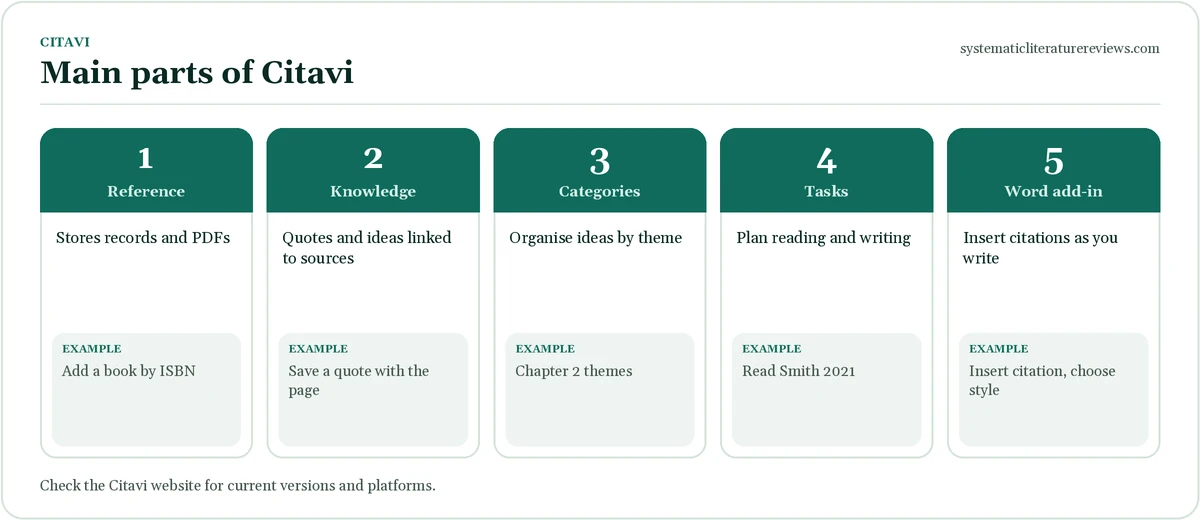
The figure shows five parts. Each has a job.
| Part | What it does | Example |
|---|---|---|
| Reference | Stores records and PDFs | Add a book by ISBN |
| Knowledge | Stores quotes, summaries and comments linked to a source | Direct quote with page number |
| Categories | Organises ideas by theme or chapter | Chapter 2: Literature |
| Tasks | Tracks reading and writing | Read Smith 2021 |
| Word add-in | Inserts citations and the bibliography | Insert citation in APA |
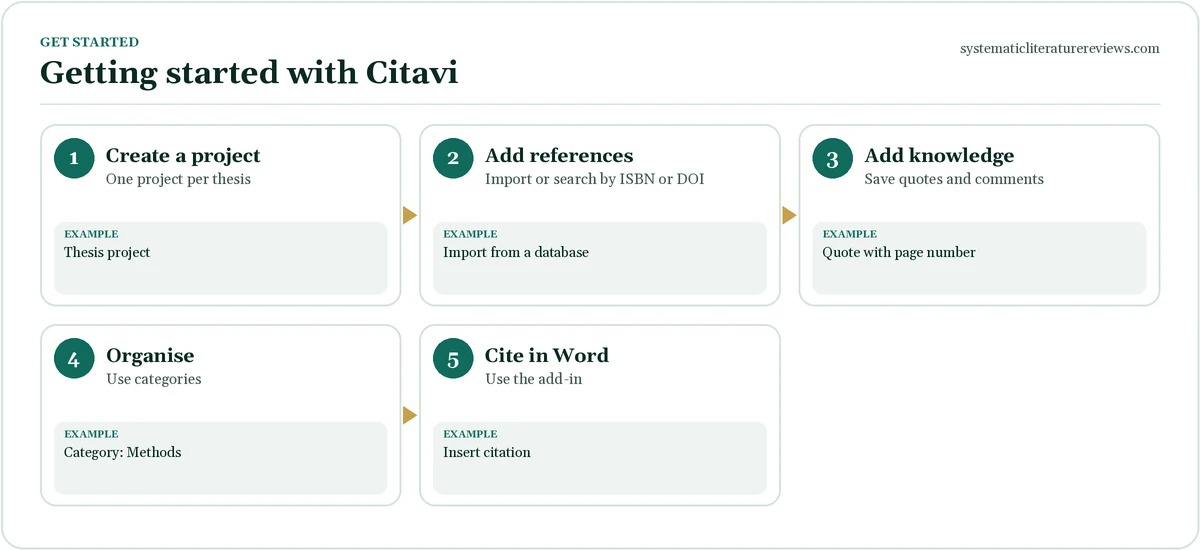
Step-by-step guide to getting started with Citavi citation software
Follow these six steps. Each has an explanation and an example.
- Create a project. Install Citavi or open the web version, then create a new project for your thesis or paper. Use one project per piece of work. Example: Project name: Thesis 2026.
- Add references. Import records from a database, search by ISBN or DOI, or add them by hand. Attach the PDF to each record. Example: Import an RIS file from PubMed.
- Check the records. Open each record and correct authors, titles, years and page numbers, as errors will appear in your bibliography. Example: Fix a missing journal volume.
- Add knowledge items. As you read, save direct quotes, paraphrases and your comments with the page number and link them to the source. Example: Quote on page 45 about burnout.
- Organise with categories. Create categories for chapters or themes and assign knowledge items to them. The category tree becomes an outline. Example: Category 2.1: Causes of burnout.
- Cite in Word and build the bibliography. Use the Citavi Word add-in to insert citations, choose a style and create the bibliography. The citations stay linked to the project. Example: Insert citation, choose Harvard.
Using the knowledge organiser well
The knowledge organiser is what makes Citavi different.
- Direct quotes: copy exact words, with the page, and mark them as quotes.
- Indirect quotes: write a paraphrase in your own words with the page.
- Summaries: record the main point of a whole paper.
- Comments: record your own thoughts and questions.
- Keywords and categories: link each item to a theme so that you can find it later.
- Export: the category outline can become the structure of your chapter.
Citing in Word with Citavi
The add-in links your document to your project.
- Insert citation: pick a reference or a knowledge item, and the citation appears in the text.
- Change style: choose another style and the whole document updates.
- Add page numbers: edit the citation to add page ranges.
- Bibliography: the add-in creates the reference list at the place you choose.
- Work in one file: avoid copying citations between documents.
Citavi vs Zotero vs EndNote
Choose by your platform, project and institution.
| Feature | Citavi | Zotero | EndNote |
|---|---|---|---|
| Strength | Knowledge organisation | Free, open and flexible | Large libraries and reviews |
| Cost | Licence, often provided by universities | Free with optional storage | Paid, often provided by universities |
| Word integration | Yes | Yes | Yes |
| Notes and quotes | Strong, linked to categories | Notes in records | Notes in records |
| Systematic reviews | Possible, with limits | Possible, with add-ons | Strong |
Read the guides to EndNote citation management and reference management tools.
Importing and finding references
Good records save time.
- Search inside Citavi: look up books and articles by title, ISBN or DOI.
- Browser connector: save records from web pages and databases.
- Import files: RIS and BibTeX files from databases.
- PDF import: Citavi can read metadata from many PDFs.
- Check duplicates: merge repeated records, keeping the most complete one.
Working in teams
Shared projects need rules.
- Shared projects: some Citavi versions allow teams to work on a project; check the licence.
- Roles: agree who adds references and who edits records.
- Naming: agree category names and keywords.
- Backups: keep a copy of the project outside the shared space.
- Style: agree the citation style at the start.
Backing up and sharing your project
Back up regularly.
- Backup copy: use the backup function to save the project and attachments.
- Schedule: weekly, and before large changes.
- Store safely: on another drive or cloud storage.
- Test: open a backup occasionally.
- Export: a list of references in RIS or BibTeX as a standard-format copy.
Practical tips for Citavi citation software
These habits keep a project clean.
- Add references as you read: not at the end.
- Always record page numbers: for quotes.
- Use short summaries: to recall the argument of each source.
- Check the style: against your handbook.
- Ask the library: many universities offer Citavi training.
Common mistakes with Citavi citation software
Avoid these problems.
- Several projects for one thesis: knowledge is scattered. Example: use one project.
- Quotes without pages: you cannot cite them. Example: record pages.
- Typing citations by hand: links are lost. Example: use the add-in.
- No backups: a damaged project loses work. Example: back up often.
- Assuming features are unchanged: platforms and plans change. Example: check the website.
For help with a literature review, see how to write a literature review.
A worked example: organising a chapter in Citavi
This example follows one chapter of a nursing dissertation from reading to writing.
- Project: Dissertation on nurse burnout.
- Add: import 40 references from PubMed and CINAHL and attach the PDFs.
- Read and save: while reading Smith (2021), save a direct quote on page 45, a summary of the method and a comment about the small sample.
- Categories: create the categories 2.1 Definitions, 2.2 Causes, 2.3 Consequences and 2.4 Interventions.
- Assign: link each quote and summary to a category.
- Outline: the category tree gives the section headings for Chapter 2.
- Write: open the category, read the linked items and cite them in Word with the add-in.
Searching and reviewing your Citavi project
A project with hundreds of items needs good search habits.
- Search by keyword: use keywords you added while reading.
- Filter by category: see every quote linked to one theme.
- Filter by status: mark items as read, to read or key.
- Use the task list: add tasks such as check the sample size in Okafor 2021.
- Review before writing: read all items in a category in one view, which makes it easy to compare studies.
Using Citavi for a literature review
Citavi supports a literature review because it keeps evidence and ideas together.
- Search record: save search terms and dates in the project, perhaps as a note.
- Screening: use categories or keywords such as included and excluded.
- Extraction: use knowledge items to record the aim, design and result of each study.
- Synthesis: group items by theme and compare them.
- Limits: for a full systematic review, check whether you need a dedicated screening tool; see literature search strategy.
Choosing Citavi: cost, support and fit
Think about practical issues before you start.
| Question | What to check |
|---|---|
| Does my university offer a licence? | Library or IT website |
| Which operating system do I use? | Citavi website, for the supported platforms |
| Does my supervisor use another tool? | Agree a common format such as RIS |
| How big is my project? | Large projects benefit from structure |
| Do I need collaboration? | Check team features in your licence |
Good habits for Citavi citation software projects
These habits keep your project useful.
- Use short, clear category names: they become headings.
- Record the page number for every quote: you cannot cite it without one.
- Mark quotes as direct or indirect: you must handle them differently in writing.
- Review your categories each month: merge or split them as your argument develops.
- Back up before big changes: such as merging duplicates.
Checking and cleaning your Citavi library
A clean library prevents errors in the final bibliography.
- Duplicates: merge them, keeping the record with the DOI and PDF.
- Missing fields: fill in the year, the volume and the pages.
- Consistent names: make sure an author’s name has one spelling.
- Check the type: a book chapter should not be a journal article.
- Review before submitting: scan the bibliography for odd capital letters or missing information.
A weekly workflow with Citavi
A simple routine keeps the project under control.
| Day | Task |
|---|---|
| Monday | Search databases and import new records |
| Tuesday to Thursday | Read, save quotes and assign categories |
| Friday | Review categories, draft a section and back up the project |
- Short sessions: twenty minutes a day beats one long session.
- Review weekly: look at the task list and clear it.
Using Citavi for a thesis from start to finish
A thesis is the best use of Citavi because the project grows over many months.
- Month 1: set up: create the project, import the first 50 references and create a category for each planned chapter.
- Months 2 to 4: read: save quotes, summaries and comments as you read, and link each to a category.
- Months 5 to 8: write: open each category, review the linked items and write the section with citations from the add-in.
- Final month: check: review the bibliography, fix records and save a backup. Example: confirm every in-text citation matches the list.
Frequently asked questions about citavi citation
What is Citavi citation software?
Citavi is a reference management and knowledge organisation program. You collect references and PDFs in a project, save quotes, summaries and comments linked to each source, organise them by category and then use the Word add-in to insert citations and create a bibliography. Its distinctive feature is the knowledge organiser, which helps you turn reading into an outline for your writing. It was developed by Swiss Academic Software and is now part of Clarivate, so check the website for the current versions and platforms.
Is Citavi free?
Citavi has offered a free version with limits, and a paid version with more features, and many universities provide licences to staff and students. Prices, plans and the details of the free version change over time, so check the Citavi website and your library before you decide. If you cannot get a licence and your project is small, free tools such as Zotero or Mendeley can do much of the same work. Try a free option on ten references first, and see whether its approach suits the way you read and write.
How is Citavi different from Zotero?
Both manage references and insert citations, but they emphasise different things. Citavi is built around knowledge organisation: you save quotes and ideas linked to sources and arrange them in categories that can serve as an outline. Zotero is free and open source, works across platforms and has a large community and many plugins, but its notes are less structured. If you want a structured way to move from reading to writing, Citavi may suit you; if you want a free, flexible tool, Zotero is a strong choice.
Can I use Citavi on a Mac?
Platform support has changed over time, and the desktop program was developed mainly for Windows, with web-based options for other systems. Because this changes with new versions, check the Citavi website for the current list of supported platforms and features before you commit. If you use a Mac, ask your library whether a web version or another supported route is available, or consider a reference manager that runs on all platforms, such as Zotero or EndNote, so that your library and Word plugin work without workarounds.
Need expert help? Our experienced writers can handle the search, screening and write-up for you. Place your order in two minutes, or read how a systematic literature review works first.
Systematic Literature Reviews
Need your references sorted?
Clean, correctly formatted citations and reference lists in APA, Harvard, MLA or Chicago.